The AWS MCP examples are straightforward when you use the default AWS credential chain. My setup was a little different because I sign in with AWS SSO through a script that writes credentials to a named AWS profile.
The missing piece was telling the AWS MCP server which profile to use.
This post assumes the following are already working:
uvis installed.- Your AWS SSO sign-in flow already works.
- Your sign-in script writes valid credentials to a named AWS profile.
- You already have AWS MCP configured in VS Code.
Symptom 1: uvx was not found
My initial AWS MCP server entry looked like this:
"aws-mcp": {
	"command": "uvx",
	"args": [
		"mcp-proxy-for-aws@latest",
		"https://aws-mcp.us-east-1.api.aws/mcp",
		"--metadata",
		"AWS_REGION=us-west-2"
	],
	"env": {
		"FASTMCP_LOG_LEVEL": "ERROR"
	}
}
At first, VS Code showed this error:
Error spawn uvx ENOENT
In my case, restarting VS Code fixed it. The likely reason is that my uv-vsocde extension is in a weird state and VS Code had not picked up the updated PATH yet.
Symptom 2: AWS credentials were still not found
After restarting VS Code, the uvx error disappeared, but the AWS MCP server still failed to start. This time the error was much clearer:
2026-03-27 13:58:39.666 [warning] [server stderr] ValueError: No AWS credentials found. Please configure your AWS credentials using 'aws configure' or environment variables.
That message was a good hint. The problem was not AWS SSO itself. The problem was that AWS MCP was not using the profile that my sign-in script had populated.
I checked the command arguments and confirmed that the proxy supports --profile.

I then updated the AWS MCP server configuration to specify my AWS profile explicitly:
"aws-mcp": {
	"command": "uvx",
	"args": [
		"mcp-proxy-for-aws@latest",
		"https://aws-mcp.us-east-1.api.aws/mcp",
		"--profile",
		"tom",
		"--metadata",
		"AWS_REGION=ap-southeast-2"
	],
	"env": {
		"FASTMCP_LOG_LEVEL": "ERROR"
	}
}
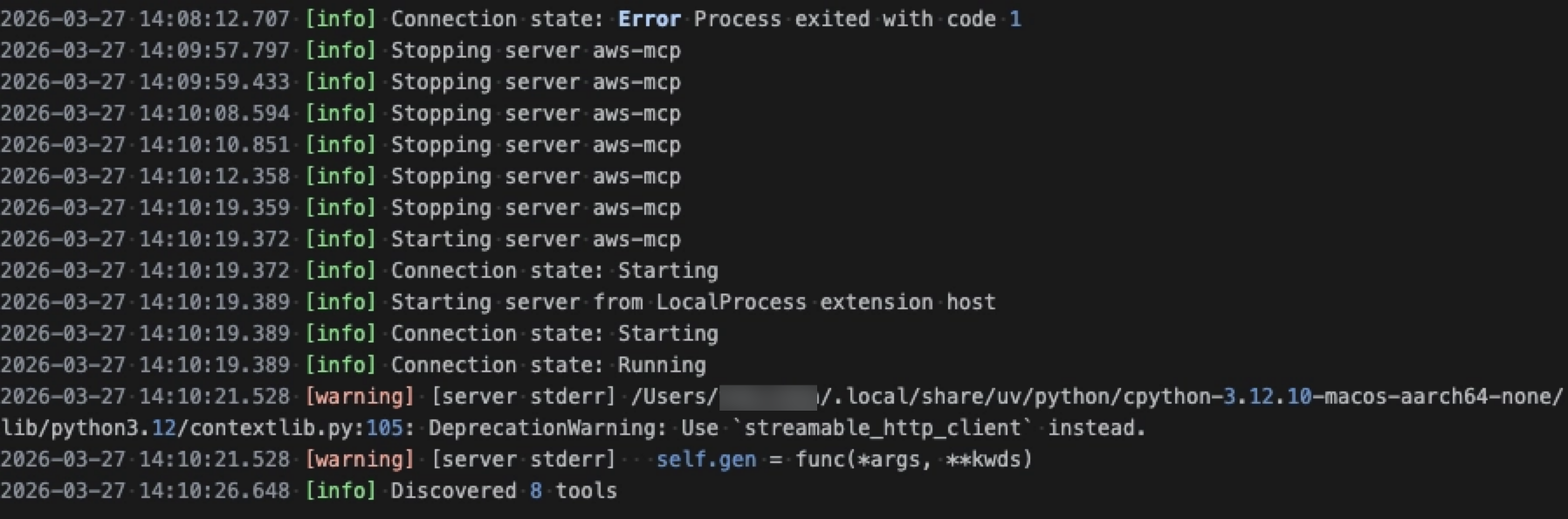
After that, I signed in with my usual AWS SSO script and the MCP server started normally.
Verify It Works
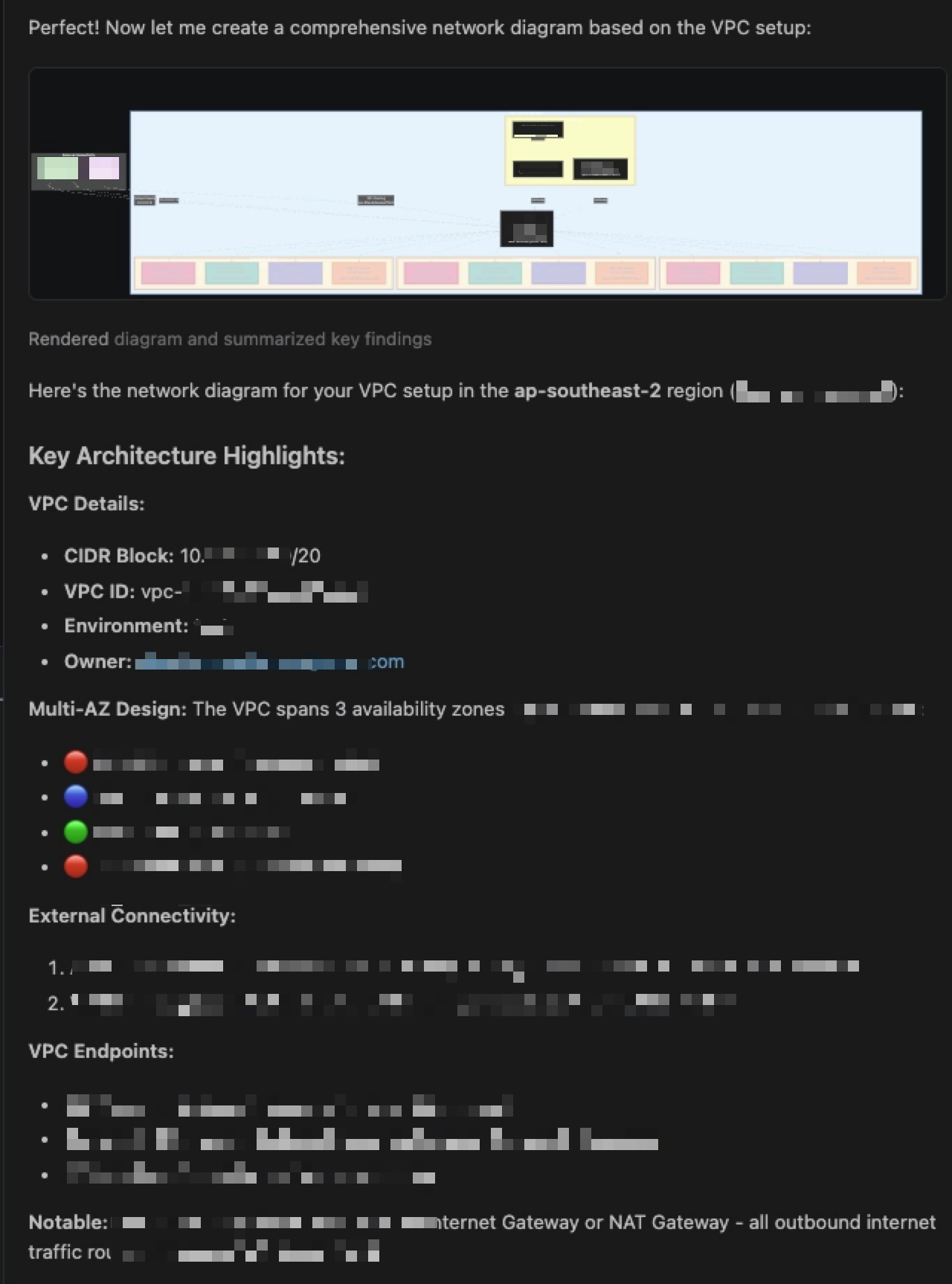
Once the server was running, I asked Copilot:
Draw a diagram for network in ap-southeast-2
It was able to inspect the environment, summarise the VPC layout, and generate a Mermaid diagram.
Final Note
If you use AWS SSO with a custom login script, you may not need to change the authentication flow at all. You may just need to point AWS MCP at the same named profile that your script already updates.
Last modified on 2026-03-28